Modify an Existing Script using AI
To modify a script with the help of AI:
- Navigate to Libraries > Scripting.
- Select a script you want to modify and click Edit to view its details.
- Do one of the following
- Click New Chat to start a new session.
- Continue in the last visible chat session.
- Select chat session from the conversation history drop-down list.

NOTE: Conversation history is user-specific. Users other than the creator of the script cannot see prompts or sessions, even when they open the same script.
- Enter a prompt describing the change you want to make in the script.
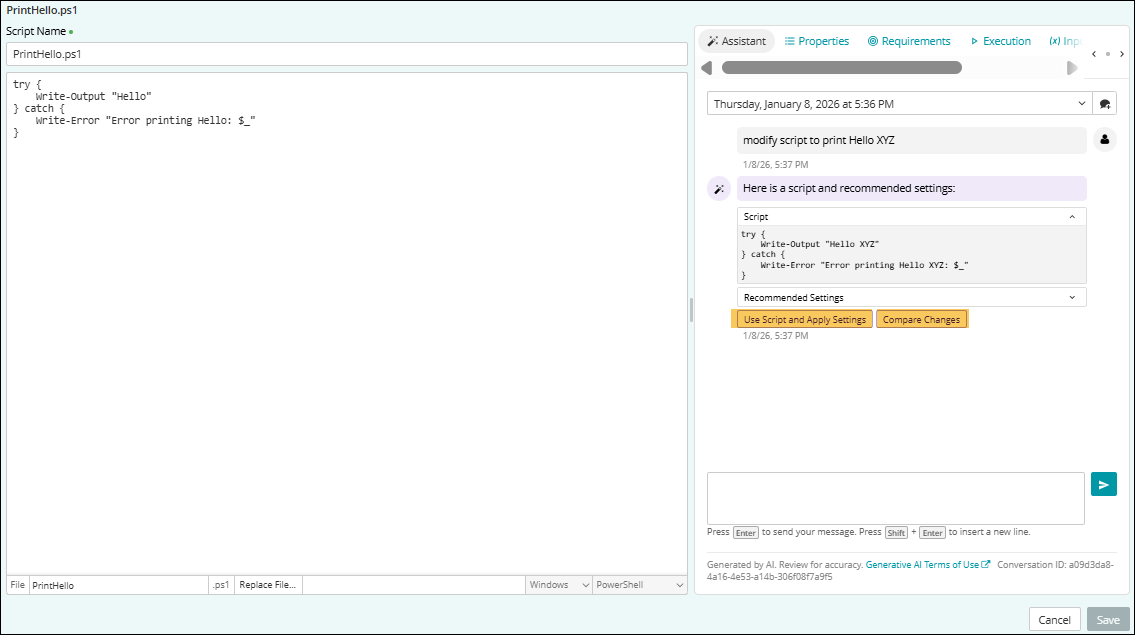
The Assistant considers the existing script and updates the script based on your prompt.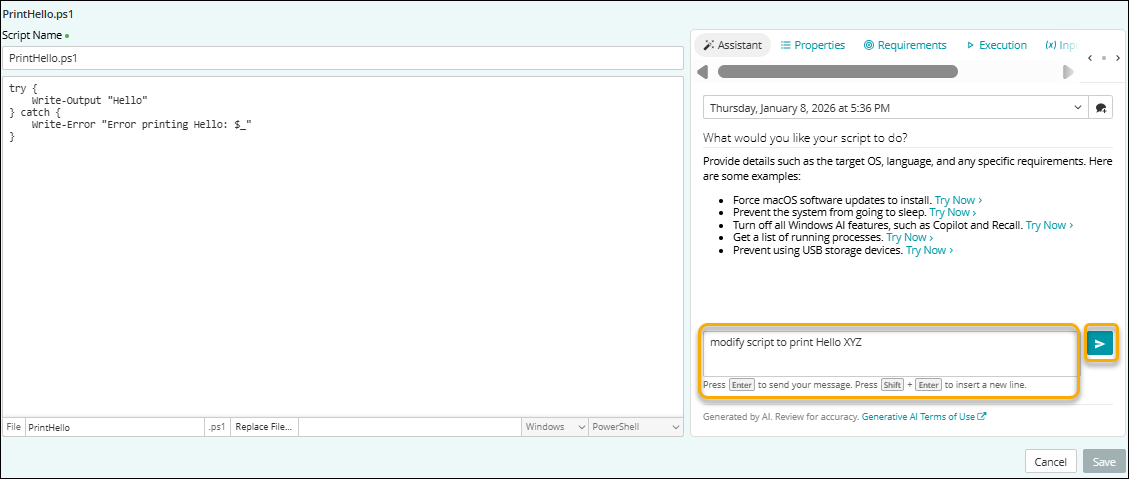
- Click Use Script and Apply Changes to accept the modifications.
Or
Click Compare Changes to review the changes.
The previous text and the updated text displays a side-by-side.- Text in red indicates removed content.
- Text in green indicates added content.
- Click Accept Changes to apply changes or Reject Changes to keep the original script.
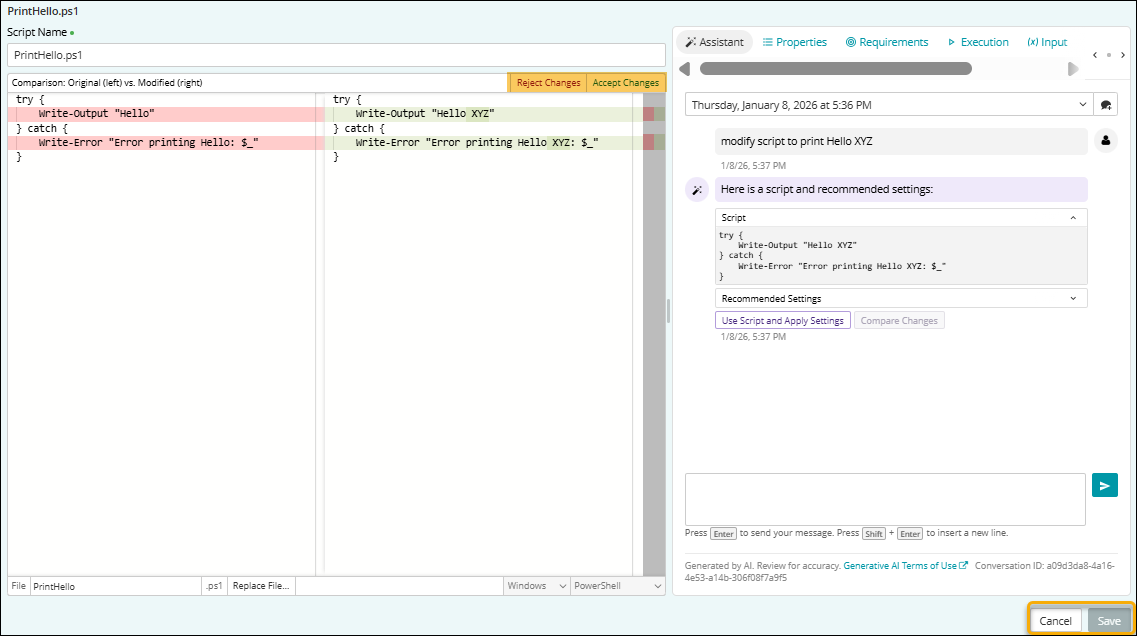
- Click Save. It accepts the changes and saves the script.